Sharing your unlocked iPhone briefly
Use: native app lock for sensitive apps. If the other person only needs one app, Guided Access is even more contained.
Yes, you can lock many individual apps on a current iPhone. The strongest built-in option is the native app lock that asks for Face ID, Touch ID, or your device passcode each time the app is opened. Screen Time is better for time limits, scheduled restrictions, and parental controls.
There is no single setting that fits every privacy problem. Native app locking is best when you want authentication before an app opens. Screen Time is better when you want usage rules. Guided Access is useful when you hand the phone to someone and want them to remain inside one app.
For sensitive content, it can also make sense to protect the content itself. Photos has a protected Hidden collection, some messaging and financial apps offer their own biometric screen lock, and a secure vault can isolate private files, notes, media, or credentials. The right approach depends on whether you are protecting access to an app, limiting when it can be used, or isolating the data inside it.
Older advice often uses a one-minute Screen Time limit as a workaround. That is no longer the best general answer on modern iOS because the operating system can directly require Face ID, Touch ID, or passcode for many apps.
Native per-app locking requires iOS 18 or later. The authentication method follows the hardware on your iPhone: Face ID on Face ID models, Touch ID on Touch ID models, with the device passcode available as the system fallback. If you are on an older iOS version, use an app's own lock, Screen Time, Guided Access, or protected content features instead.
For most people, this is the cleanest answer to how to lock apps on iPhone with a password or biometric authentication.
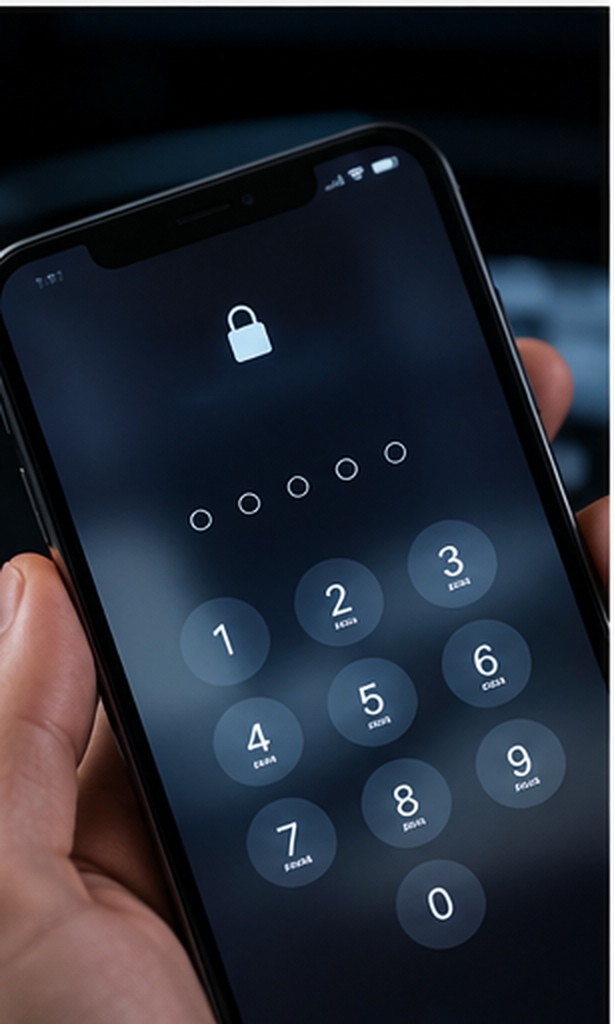
Locate the app you want to protect. If it is only in App Library, you can still find it there, but Home Screen placement makes the gesture easier to follow.
Touch and hold the app icon until its quick actions appear.
Tap Require Face ID, Require Touch ID, or Require Passcode, depending on your iPhone and current settings.
Authenticate when prompted. The next time the app is opened, iOS asks for authentication before showing the app.
Face ID does not need to be enabled separately for each system-level app lock. Once Face ID is enrolled for the device and you apply the app-lock setting, iOS uses that identity check when the app opens. If Face ID is temporarily unavailable, the operating system can fall back to the device passcode.
On a Touch ID-equipped iPhone, the same feature uses Touch ID. If biometrics are unavailable, the device passcode can be used. If your iPhone is too old for iOS 18, use Screen Time, an app's own PIN or biometric lock, or Guided Access depending on your goal.
Screen Time is not the same thing as a normal biometric app lock. Its strength is controlling when and how long an app can be used, especially for children, shared devices, focus routines, purchase restrictions, and scheduled downtime.

Open Settings, choose Screen Time, and enable App & Website Activity if it is not already active.
Use a passcode that a child or other restricted user does not know. Do not reuse the device passcode if the purpose is parental control.
Choose App Limits to set daily usage or Downtime to restrict apps during scheduled periods. For stronger downtime enforcement, enable the option that blocks restricted apps during downtime.
Make sure the apps you intend to restrict are not exempted by an Always Allowed setting.
Yes. Screen Time can apply downtime schedules and app limits. That makes it a better fit than the native app lock when the rule is time-based, such as blocking games during homework hours or limiting social apps in the evening.
Guided Access solves the opposite problem. Instead of stopping someone from opening one particular app, it temporarily keeps the iPhone inside the app you choose. It is useful when you hand your phone to a child, customer, friend, or colleague for one specific task.
You can use the iPhone's native per-app lock on supported iOS versions. WhatsApp may also provide its own privacy lock inside the app. If both are available, using the native lock is the simplest device-level control, while the app's own setting can add an application-specific checkpoint.

First try the native method: touch and hold WhatsApp on the Home Screen, choose the Face ID requirement, and authenticate. If you prefer WhatsApp's internal setting, open its privacy settings and look for the app or screen lock option available in your installed version.
On iOS 18 and later, you do not need a separate Instagram locker. Apply the iPhone's native app lock to Instagram. If your goal is to make the app less visible as well, downloaded apps can also be hidden when the system offers the hide-and-authenticate option.
The same native iPhone app-lock method is the most direct approach for Snapchat. This avoids relying on whether the app currently exposes a separate biometric lock setting.
Locking the Files app can reduce casual access to files visible through that app, but it does not create a separately encrypted folder with a unique password. If your real goal is a private container for sensitive documents, use an encrypted vault workflow instead of assuming an app icon lock changes the underlying file protection model.

iOS does not provide a general Finder-style folder feature where every arbitrary folder receives its own independent password. You can lock access to eligible apps, protect Notes, use the locked Hidden collection in Photos, and use a secure vault app for content that needs its own protected container.
You can lock the Photos app itself on supported iOS versions. For selected photos, the Hidden and Recently Deleted collections are protected by Face ID, Touch ID, or passcode by default on supported systems. This is often better than locking the entire Photos app when only a small set of media is sensitive.
A device passcode protects the whole iPhone when it is locked. An app lock protects selected apps after the phone has already been unlocked. They solve different risks.
| Method | Difficulty | Security | Cost | Best for | Limitations |
|---|---|---|---|---|---|
| Device screen lock | Easy | High | Free | Protecting the whole phone | Does not stop access after you intentionally unlock and hand over the device |
| Native iOS app lock | Easy | High for app access | Free | Requiring authentication before eligible apps open | Uses device authentication; not every built-in app can be locked |
| Screen Time | Moderate | Policy control | Free | Schedules, children, limits | Designed around usage rules rather than per-open biometric protection |
| App's own biometric lock | Easy | Varies by app | Usually free | Financial and messaging apps with built-in controls | Availability and behavior differ by app |
| Guided Access | Moderate | Good temporary containment | Free | Handing the phone to someone for one task | Not intended as persistent per-app protection |
| Folder Lock secure vault | Moderate | Content-focused | Free tier; Pro in app | Private files, media, notes, and other imported content | On iPhone it does not lock other third-party apps at the system level |
| Editorial verdict | Use native iOS app locking for app access, Screen Time for usage rules, and a vault only when the content itself needs a protected container. | ||||
| Authentication | Speed | Shoulder-surfing risk | Fallback | Best fit |
|---|---|---|---|---|
| Face ID | Very fast | Low | Device passcode | Most current Face ID iPhones |
| Touch ID | Very fast | Low | Device passcode | Touch ID-equipped iPhones |
| PIN or passcode | Fast | Higher if observed | Owner recovery rules vary | When biometrics are unavailable |
| Pattern | Not a native iPhone app-lock method | Not applicable | Not applicable | Do not choose this as the main iPhone system method |
Use this mini demo to see the sequence for a time-based restriction. It is intentionally labeled as a restriction workflow, not a biometric app lock.
Step 1 of 4: Open Settings and choose Screen Time.
0 of 10 completed
This S104 guide is intentionally limited to iPhone. The selector is included to prevent accidental platform mixing.
Folder Lock serves a different job from the iPhone's native per-app authentication. It gives you a separate place for selected photos, videos, documents, audio, private notes, wallet records, contacts, voice recordings, and other supported material that you deliberately move into the app.

Its broader privacy toolkit can also back up protected data to supported cloud services, move files over a local Wi-Fi connection, record failed access attempts, and provide a privacy-focused browser. That makes it most useful when the sensitive item is the content itself rather than the launch icon of another app.
There is an important limitation: a vault adds responsibility as well as privacy. Keep recovery details outside the vault, confirm your backup plan, and do not delete the app until any important data stored inside it has been safely exported or backed up.
These are content-protection features, not a replacement for the iPhone's native ability to require Face ID, Touch ID, or the device passcode before opening another eligible app.
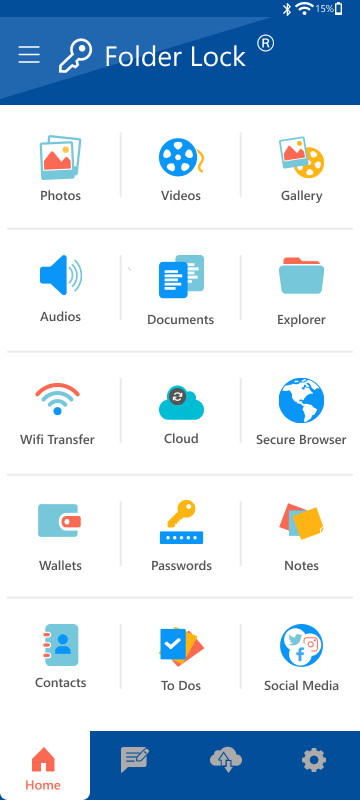
You can keep chosen photos, videos, documents, music, recordings, and miscellaneous files inside Folder Lock instead of leaving every sensitive item in ordinary libraries. This is useful when only a subset of your data needs a separate privacy boundary.
The app includes dedicated areas for private notes, saved contacts, voice recordings, and structured wallet information such as financial or identity-related reference details. Treat the vault as protected storage, not as a substitute for the security controls of your bank, password manager, or identity provider.
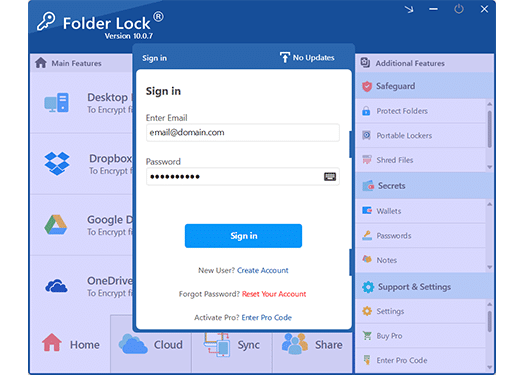
The supplied product material describes AES-256 protection for cloud backup workflows and names Dropbox, Google Drive, and OneDrive as supported destinations. This can add resilience when configured correctly, but you should still understand the recovery requirements of both Folder Lock and the cloud account you use.
Folder Lock can keep a record of unsuccessful attempts to enter the app and can capture an image during a failed login. This can help an owner notice repeated access attempts after the phone has been out of sight.
A local web-transfer workflow lets supported files move between the iPhone and a computer while both are on the same network. It is useful when you prefer not to rely on a cable or a cloud upload for every transfer.
The built-in browser is designed for sessions that do not leave ordinary browser history and cookie records inside the app's browsing workflow. Downloads can then be organized into the relevant protected content area, reducing the need to expose a sensitive file in a general-purpose download location first.
The supplied settings documentation includes an owner recovery path and a decoy credential that can open a separate set of non-sensitive data. Configure recovery before you need it, and store the recovery destination somewhere you can reach without opening the vault.
The product material describes the ability to work with protected data across supported platforms. This guide stays focused on iPhone, so it does not reproduce setup steps for Windows, Android, Mac, or iPad.
This workflow is for files and records you want inside a dedicated vault. Use the native iOS app lock when the goal is simply to stop someone from opening another eligible app.
Download Folder Lock from its official App Store listing and confirm the developer before you place confidential material inside it.
The supplied setup notes say the app accepts a master password from four characters, but that is only a technical minimum. For real protection, choose a much longer unique credential that is difficult to observe or guess.
Review the recovery controls in the app settings and connect them to an email address you control. If the decoy-access option is useful for your threat model, configure it separately and verify that it reveals only the non-sensitive material you intended.
Create appropriate collections and add selected media, documents, audio, notes, voice memos, contacts, or wallet records. Photos and videos can be brought in from existing media or captured for storage in the protected area, while other supported files can be organized into their own folders.
For nearby transfers, use the app's local Wi-Fi workflow with your computer. For off-device resilience, review the supported cloud-backup options and make sure you can recover both the Folder Lock account and the cloud account independently.
Close and reopen the app to confirm the vault challenges you as expected. Then verify that important data exists in the backup or export location you chose. Do not uninstall Folder Lock while irreplaceable material exists only inside the app, because removing the app can also remove data stored with it.
iOS isolates apps from one another. That is why a third-party privacy app cannot generally sit in front of arbitrary iPhone apps and replace the operating system's own launch controls. Use native iOS locking for other apps and use vault software for content placed inside that vault.
Both are device-level biometric authenticators controlled by iOS. For this guide, the practical difference is hardware: Face ID-equipped iPhones use facial authentication, while Touch ID-equipped iPhones use fingerprint authentication. The app-lock workflow follows the device capability.
Restarting the iPhone does not convert a protected app into an unprotected one. After a restart, expect iOS to require the device passcode before normal biometric convenience resumes. Test any especially sensitive app after major system changes rather than assuming every setting behaved identically.
An app's locked or hidden state is a device-level setting and does not sync as a universal iCloud lock state. Treat backup protection, synchronization, and app-opening controls as separate layers.
A separate vault introduces its own credential and recovery lifecycle. Folder Lock's supplied documentation describes recovery and decoy-access controls, while also warning that deleting the app can remove information stored inside it. The safest setup keeps recovery reachable outside the vault and maintains a verified copy of irreplaceable data.
| Capability | Native iOS app lock | Screen Time | App-specific lock | Folder Lock |
|---|---|---|---|---|
| Require authentication before eligible app opens | Yes | Not its primary purpose | Only inside supported apps | No for other iPhone apps |
| Schedule access by time | No | Yes | Usually no | No |
| Parental controls | Limited | Yes | Varies | No system-wide control |
| Hide a downloaded app from Home Screen | Available for eligible downloaded apps | No general equivalent | No | No for other apps |
| Protect selected private files and media in a separate vault | No dedicated vault | No | Varies | Yes |
| Best use | Everyday app access privacy | Time and family rules | Extra protection within a sensitive app | Private content container |
The supplied Folder Lock comparison lists a Free tier at $0 and a Pro tier at $39.95. The same comparison shows meaningful differences in storage capacity, device syncing, and advanced protection tools, so the paid version is most relevant when you expect the vault to become part of an ongoing privacy workflow.
| Capability | Free | Pro |
|---|---|---|
| Listed price | $0 | $39.95 |
| Locker capacity | 1 GB | Unlimited |
| Devices in sync | 2 | 5 |
| Shared users | Unlimited | Unlimited |
| Mobile apps | Included | Included |
| Secrets storage | Included | Included |
| Folder protection | Not listed for Free | Included |
| File shredding | Not listed for Free | Included |
App locking works best as one part of a broader privacy setup. Review notification previews, app permissions, device passcode strength, Find My and account recovery, software updates, and the permissions granted to financial, social, camera, microphone, and location-sensitive apps.
Use the bank's own biometric or PIN controls if offered, keep the iPhone's device passcode private, and apply the native app lock where available. Avoid storing banking recovery codes in ordinary screenshots. If you keep sensitive records in a vault, preserve a separate owner-controlled recovery plan.
Use Screen Time through Family Sharing or the child's device settings. Set a Screen Time passcode the child does not know, configure allowed apps, content and purchase restrictions, downtime, and app limits. Native app hiding and locking should not be treated as a substitute for parental controls.
No single control should carry the entire security burden. Keep a strong device passcode, avoid enrolling another person's biometric identity on your phone, use app-specific controls for high-risk services, and protect account recovery channels. The practical benefit of biometric app locking is that it reduces casual unauthorized access without requiring repeated typing of a visible PIN.
Use: native app lock for sensitive apps. If the other person only needs one app, Guided Access is even more contained.
Use: Screen Time. It is designed for schedules, limits, content restrictions, and purchase control.
Use: native app lock plus the app's own biometric setting when it offers one.
Use: built-in protected collections where they fit, or a secure vault such as Folder Lock for intentionally imported content.
The following are illustrative composite scenarios, not quoted customer testimonials.
“I hand my phone to family for photos, so I lock banking, email, and work chat with the native iPhone control.”Composite scenario: shared-device moments
“Screen Time works better for our household because the problem is homework hours, not whether the game can ever open.”Composite scenario: parent managing a child's phone
“For a few personal documents, I prefer a separate vault instead of trying to hide the entire Files app.”Composite scenario: private-content user
“Guided Access is the fastest option when someone needs to use one app on my phone and nothing else.”Composite scenario: temporary phone sharing
These tools are developed by NewSoftwares.net, the same team behind Folder Lock. They are included for context, not because they solve iPhone app locking directly.
Secure vault for private files, photos, videos, notes, and other supported content on iPhone and iPad.
Mobile privacy tool focused on protected cloud account access and private content workflows.
A mobile vault concept for storing files and passwords in a protected environment.
Designed around locking and encrypting private notes rather than controlling other apps.
On iOS 18 or later, touch and hold an eligible app, choose the authentication requirement, and confirm. The system uses Face ID, Touch ID, or the device passcode rather than assigning a brand-new password to that app.
Touch and hold the app on the Home Screen, choose Require Face ID, and authenticate. The option appears only for apps that support the system-level lock.
The native iOS app lock uses the device's authentication system, so it does not assign a separate system password to every app. Use an app's own PIN or password feature when you need a distinct credential.
Use the native iPhone app lock on supported iOS versions. You can also review WhatsApp's own privacy settings for an internal biometric screen lock if your installed version offers it.
On iOS 18 or later, touch and hold Instagram, choose Require Face ID or the equivalent authentication option, then confirm.
Screen Time manages app usage with limits, downtime, allowed apps, and family controls. It can block access under configured rules, but it is not the same as the native per-open biometric lock.
Use the native Require Face ID, Touch ID, or Passcode control on iOS 18 or later. You can also use an app's own security setting for supported apps.
Use the native app lock if you want authentication before it opens. Use Screen Time if you want daily limits, bedtime restrictions, or parental controls.
Check whether the native lock option appears for the App Store on your current system. For children or purchase control, Screen Time's Content & Privacy Restrictions and purchase settings are the more purpose-built solution.
You can lock the Photos app on supported iOS versions. For selected private images, the Hidden and Recently Deleted collections can require Face ID, Touch ID, or passcode.
Yes. On iOS 18 and later, eligible apps can be locked directly from their Home Screen quick actions.
Biometrics reduce shoulder-surfing and are faster for repeated checks. The device passcode still matters because it is part of the overall recovery and fallback model.
A normal restart should not be treated as a way to remove the owner's app-lock setting. After a restart, iOS can require the device passcode before biometric authentication resumes. Keep the device passcode private.
For eligible downloaded apps, choose the hide-and-require-authentication option. Hidden apps move out of normal Home Screen view, but their names can still appear in certain Settings and purchase-history areas.
Use the legitimate owner recovery path: your device passcode for native iOS locks, the app's documented recovery option for app-specific PINs, Screen Time passcode recovery for Screen Time, or vendor support. This guide does not provide unauthorized bypass methods.
Close the app completely, return to the Home Screen, then open it again. A correctly applied native lock should request Face ID, Touch ID, or passcode before showing the app. Also check that sensitive previews are not leaking the information you intended to protect.
For Screen Time, test during an active restriction window and confirm the app is actually blocked rather than merely dimmed. For a secure vault, close and reopen the vault and confirm protected content is not visible before authentication.
Do not use a one-minute Screen Time limit when your real need is a normal app lock and the native iOS feature is available. Do not assume hiding an app removes it from every system record. Do not reuse an easily observed passcode for sensitive app-specific locks. Do not store recovery codes inside the same app or vault they are meant to recover.
For banking and work accounts, app locking is only one layer. Strong account passwords, multifactor authentication, secure recovery channels, and current software are still necessary.
After a restart, the device passcode is an important part of regaining normal biometric operation. Native app-lock settings are designed as device-level controls, but you should retest particularly sensitive apps after major iOS updates because interface details and app behavior can change.
For third-party vaults, also test login, local data availability, cloud sync, and recovery before deleting an old device or changing accounts.
For current system behavior, use Apple's support documentation for locking or hiding apps, Screen Time, and Guided Access. For Folder Lock's iPhone features and current free/Pro availability, use the official NewSoftwares iPhone page.
For a current iPhone, start with the native app-lock control. It directly answers the common need to require Face ID, Touch ID, or passcode before an eligible app opens. Use Screen Time when the problem is schedules, limits, purchases, or child access, and use Guided Access when someone should remain inside one app temporarily.
If the bigger concern is the files and private information inside your phone, add content-level protection. Folder Lock can complement iOS with a separate vault for selected media, documents, notes, audio, wallet records, contacts, and other supported data, plus optional backup, transfer, access-monitoring, and privacy tools. It still should not be described as a system-level locker for other iPhone apps.
For most people, the strongest arrangement is layered: lock eligible apps with iOS, enable each sensitive service's own security controls, and reserve a vault for material that needs to be separated from ordinary storage. If you use Folder Lock for irreplaceable data, configure recovery and verify a backup before relying on it.